
Most of us use cloud storage in one way or another. We save our important files on Google Drive, iCloud, Dropbox, or another cloud platform and assume those files are automatically backed up — it’s an easy mistake to make. Cloud storage keeps your files accessible across devices, and cloud sync makes everyday work a lot more convenient.
However, cloud storage is not the same as a true backup. If you delete a synced file, overwrite a document, lose access to your account, or ransomware encrypts files on your computer, those problems could also spread to your cloud copy. In other words, the cloud can sometimes copy the mistakes just as quickly as it copies the file.
In this guide, we’ll explain the difference between cloud sync, cloud storage, and real backup. We’ll also cover the risks cloud storage doesn’t always solve, safer backup strategies for individuals and small businesses, and how SecureBackup® and encrypted offline storage such as SecureDrive® can help.
Cloud Sync, Cloud Storage, and Backup: What Is the Difference?
We often see these terms used interchangeably, but they don’t mean the same thing.
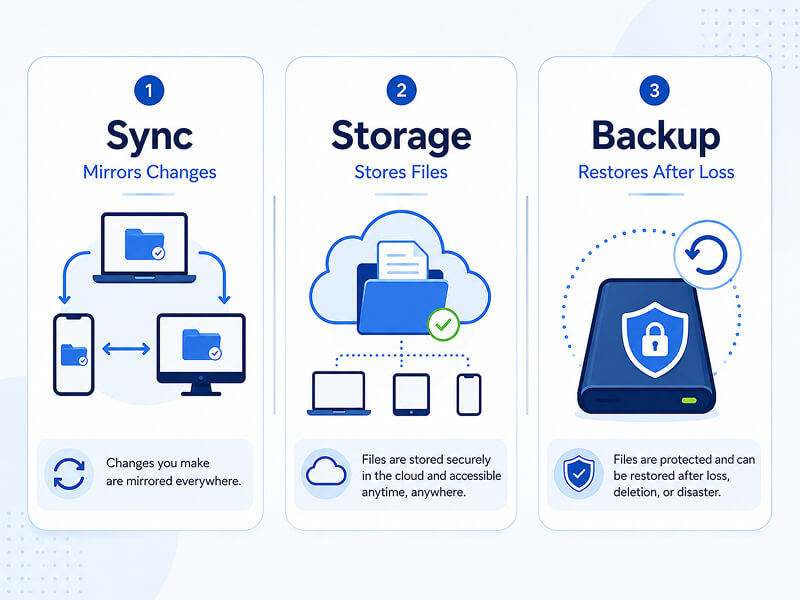
Cloud Sync
Cloud Sync is designed to keep your files updated across devices. When you add, edit, or delete a file on one device, that change is usually reflected everywhere the folder is synced. This is useful for convenience and collaboration, but it can also copy mistakes that get made. For instance, if you delete a synced folder on your laptop, that may lead to the folder being deleted from the cloud and on your other devices, too.
Cloud Storage
Cloud storage is the online service where you store and access your files. Services like Google Drive, OneDrive, Dropbox, and iCloud make it easy to store, share, and open files from different devices. Many also include helpful features like version history and recently deleted folders. However, these tools aren’t the same as a dedicated backup plan.
Real Backup
A real backup is a separate, intentional copy of your data that you keep for recovery. It’s designed to help you restore your files after accidental deletion, corruption, ransomware, hardware failure, or account access issues. Good backups are separate from your everyday files, recoverable when needed, and tested to make sure they work.
Why Cloud Storage Alone Can Still Fail
Cloud services are useful, and many include helpful safeguards that can reduce the impact of everyday mistakes, such as version history and recently deleted folders. Despite this, though, they shouldn’t be treated as a complete backup strategy. These tools can help in some situations, but they won’t protect every file in every scenario. Let’s take a closer look at some scenarios where cloud storage alone falls short.
1. Accidental Deletion
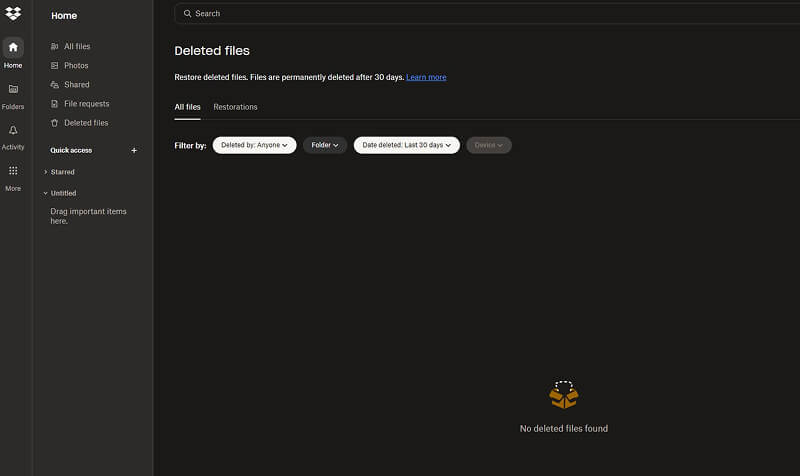
If you delete a synced file or folder, that deletion may be copied across your devices and cloud account before you notice. Recently deleted folders can help, but retention periods tend to be limited, and it’s not always easy to notice that something is missing in time.
2. Overwritten Files
Cloud storage can also reflect bad changes. For instance, if you save over a file by mistake, if it’s corrupted during editing, or if it’s replaced with the wrong version, the cloud copy may update as well. Version history can sometimes help here — but only if it’s available, easy to find, and kept long enough.
3. Ransomware Syncing Encrypted Files
If ransomware encrypts files on a synced computer, those encrypted versions may be synced to the cloud, overwriting their clean counterparts. Some platforms offer rollback or file restore tools, but these aren’t always available on every plan or for every file type.
4. Account Lockout
Cloud access depends on your account remaining available and accessible. Forgotten credentials, multi-factor authentication issues, billing problems, compromised accounts, or account suspension can all leave users locked out. If the cloud is your only copy, that becomes a serious point of failure.
5. Cloud Breaches and Privacy Risks
Cloud providers invest heavily in the security of their platforms, but you still need strong passwords, access controls, encryption, and sensible sharing habits. Weak account security or over-shared folders can still expose your sensitive files.
Helpful Features, but Not a Full Backup Plan
Cloud platforms often include the following useful tools:
- Recently deleted folders
- Version history
- Shared-folder permissions
- Account recovery
- Multi-factor authentication
- Admin retention policies for business accounts
These are all valuable tools, but they still have limitations. Retention periods can expire, free or personal plans sometimes offer fewer recovery options, shared folders can sync mistakes, and cloud access relies on your account being available. Most importantly, sync is not the same as an independent restore point.
What a Bulletproof Backup Strategy Looks Like
A strong backup strategy does more than just store an extra copy of your files. It gives you multiple ways to recover if something is deleted, corrupted, encrypted, or lost. One of the simplest ways to think about this is the 3-2-1 backup rule:
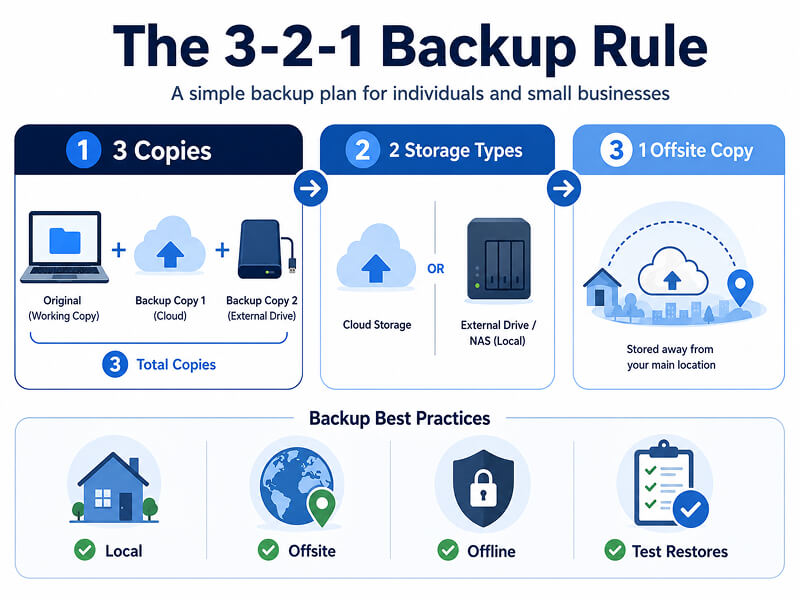
- 3 copies of your important data
- 2 different types of storage
- 1 copy stored offsite
This approach works well for both individuals and small businesses because it reduces the risk that one failure wipes out all your important files at once.
Keep a Local Copy
A local backup helps you recover quickly without relying entirely on internet access. This could be an external drive, a NAS device, or a local backup tool. If your laptop fails or a cloud account becomes unavailable, a local copy can save you a lot of time and stress.
Keep an Offsite Copy
An offsite backup keeps your files protected against risks like theft, fire, flooding, or hardware failure at home or in the office. For many people, this could be a separate cloud backup service or a backup drive stored in a separate secure location.
Keep an Offline or Isolated Copy
For better protection against ransomware and other online threats, keep at least one of your backups disconnected or otherwise isolated from your everyday systems. If malware reaches your computer or synced folders, an offline copy is much less likely to be altered or encrypted.
Test Your Restores
A backup is only useful if it actually works when you need it. From time to time, restore a few files to make sure the process is working as it should, and that your copies are complete and usable.
A bulletproof backup strategy isn’t about using one tool perfectly. It’s about using a layered approach that combines local, offsite, and isolated copies so that one mistake or one attack will never leave you without a way back.
How SecureBackup® Can Help Small Businesses Build a Real Recovery Plan
For small businesses, backup planning often starts informally. Files may be saved in cloud folders, copied to external drives, or stored across laptops and shared network drives. This can work for a while, but it becomes risky when no one has a clear overview of what’s backed up, how often it’s copied, who can access it, and whether it can actually be restored.
SecureBackup® is designed for businesses that need more certainty and oversight than ad hoc cloud storage. It helps create structured, encrypted backup workflows built around real business needs. This means protecting the right data, storing it securely, and making sure recovery is possible when files are deleted, corrupted, encrypted, or lost.
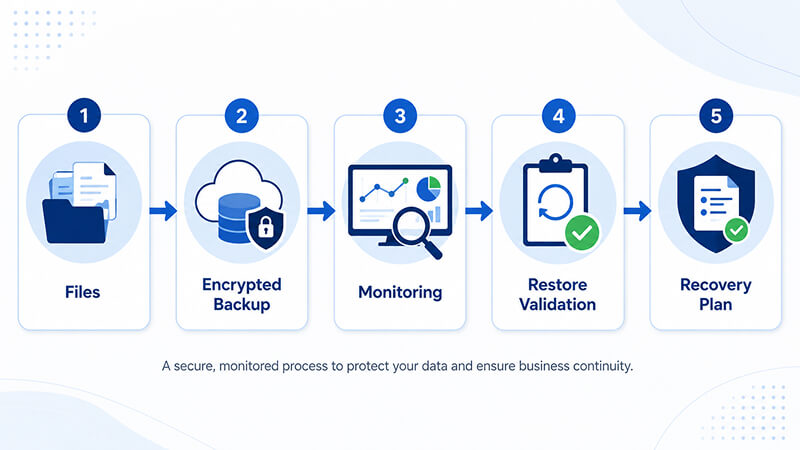
SecureBackup® can help with:
- Automated backup workflows to reduce dependence on manual copying
- Encrypted backup processes to protect sensitive data
- Retention policy planning so older versions are kept for the right amount of time
- Ongoing monitoring for backup activity, storage health, and job failures
- Restore validation to confirm that backups can actually be recovered
- Disaster recovery and business continuity support for serious outages or data loss events
This is particularly useful for remote and distributed teams, where important files may be split across cloud platforms, endpoints, and local systems.
SecureBackup® isn’t just about copying files to a different location; it’s about building a managed recovery plan that clearly defines what’s protected, where it’s stored, and how quickly it can be restored when it matters most.
Where Encrypted External Drives Fit Into a Backup Strategy
Encrypted external drives can add an important extra layer to a backup strategy, especially for anyone who wants a secure local or offline copy of their important data. For individuals and small businesses, this can help protect your sensitive personal, financial, legal, or business files without relying entirely on cloud access.
One of the main advantages they offer is local recovery. If you’re dealing with an internet outage, your cloud account is locked, or a sync issue affects your online files, a local encrypted drive can still offer access to a separate backup copy. They’re also useful for keeping offline backups that aren’t exposed to online risks like sync errors, accidental deletions, or ransomware.
Additionally, thanks to their hardware-level encryption, your sensitive data is protected in the event your drive is lost, stolen, or misplaced. It adds an extra layer of security that can be especially useful for archives, travel, remote work, and small-business continuity planning.
Encrypted external drives can work well for:
- Portable encrypted copies for freelancers or remote workers
- Sensitive client files
- Tax records and financial documents
- Personal archives
- Small-business backup rotations
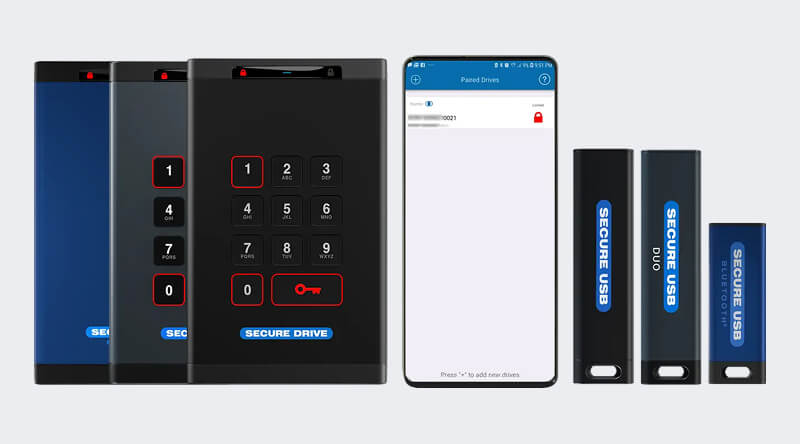
Some encrypted external drives, such as SecureDrive® devices — or their more portable counterpart, the SecureUSB® range — add another layer of protection for offline backups. In addition to XTS-AES 256-bit hardware encryption, available features can include AutoLock, Read-Only Mode, tamper-resistant components, and automatic data wipe after repeated failed password attempts.
Depending on the model, SecureDrive® and SecureUSB® devices may also support 2FA, biometric unlocking, Bluetooth app access, remote management, Step-Away AutoLock, and remote wipe. These features can help control where, when, and by whom backup data can be accessed.
Despite this array of protective features, though, you should always disconnect your encrypted drive when it’s not in use, store it securely, and test it from time to time as part of a wider backup plan.
Simple Backup Plans for Individuals and Small Businesses
A strong backup plan doesn’t need to be overly technical. Your main focus should be on making sure important files exist in more than one place and can be restored if something does go wrong.
For Individuals
A simple personal backup plan can look like this:
- Keep active files in cloud storage for convenience and access across devices
- Regularly back up important folders to an external drive — for instance, each week
- Keep a second encrypted drive stored offsite or disconnected when it’s not in use
- Use a password manager and multi-factor authentication for cloud accounts
- Check recently deleted folders and version history if a file goes missing
- Test file restores every few months to make sure your backups still work
This kind of setup gives you convenience for day-to-day use, plus a safer fallback if your files are deleted, overwritten, or affected by sync problems.
For Small Businesses
Small businesses usually need a more structured plan because important data is spread across more users, devices, and systems — and without such a plan, it’s easy to lose oversight of your data. A practical starting point is to:
- Identify critical data, such as finance records, customer information, legal documents, and project files
- Decide recovery priorities, including what needs to be restored first
- Use managed backups or automated backup software
- Keep both local and cloud/offsite copies
- Maintain an offline or immutable copy where possible
- Limit access to shared folders and sensitive files
- Document who is responsible for recovery
- Test restores regularly and update the plan after major workflow changes
For businesses that need guidance setting up a bulletproof backup plan, SecureBackup® can help with the design, monitoring, validation, and long-term management of these backup workflows. We’ll help you make the jump from basic file storage to a backup strategy built around real, future-proof recovery needs.
Use Cloud Storage, but Do Not Rely on It Alone
Cloud storage is convenient, flexible, and valuable, but make no mistake: it’s not a complete backup strategy. Sync can copy mistakes, account access can fail, ransomware can affect your synced files, and built-in recovery tools might not always be enough.
A safer approach is combining cloud storage with local backups, offsite copies, and at least one offline or isolated backup. SecureBackup® can help small businesses build managed, encrypted, and tested backup workflows, while encrypted drives like SecureDrive® and SecureUSB® can support secure local and offline copies.
Protect your files before something goes wrong. Explore SecureBackup® or SecureData encrypted external drives to build a backup strategy designed for recovery in any situation, not just storage.
If your cloud files are deleted, overwritten, or encrypted and you don’t have a backup you can restore files from, we can help. Reach out to us at Secure Data, and we’ll review your recovery options and restore your files where possible.









.png)
